Dynamic Mosaic -
Help Dynamic Mosaic -
Help |
Dynamic Mosaic -
Help
License days
The
application is in DEMO mode, except when a valid license file is found. As
explained in the chapter 'Main menu': when selecting
'
License' 'Enter registration code' the client can enter the license information.
This is how it works:
Step 1: copy the hardware ID of the systems that will be used to
run the Dynamic Mosaic application. The 'Copy
hardware ID' button will copy this code in the clipboard, which can
conveniently pasted (CTR+V) in the mail to request a license file.
Step 2: contact the reseller of the application, agree on a price, etc and finally
receive the license file for the intended system. When using a different
system you may be forced to pay an additional fee! Each license file has a validity period with
a start and expiration date and is bound to the indicated hardware. In case you wish to use multiple systems you will receive multiple
license files.
Step 3: upon reception of the mail with the attached license file, detach this file
on your hard drive. Now there are two possibilities:
Use the 'Register product'
button to locate and register the license to the application. If you already
had a previous license file it will rename the old file and place the new
file instead. There can only be ONE active license file in your
system
directly save the license from your e-mail to the
installation folder of the Dynamic Mosaic application. It must be placed in
the same folder as the executable ('DynamicMosaic.exe'). The default
installation folder is (W7/8, 64bit): 'C:\Program Files
(x86)\APP\Dynamic Mosaic' or (Win7/8 32bit): 'C:\Program Files\APP\Dynamic
Mosaic'. Step 4: restart the application. You will
notice that the DEMO text has disappeared, and that the transparent nag overlay has gone. Also the mosaic
file when saved has no nag text anymore. Restart is not
required when the file is added using the registration
button.
The following pictures shows the registration process in steps. The third picture is an optional confirmation question in case an existing license was found.
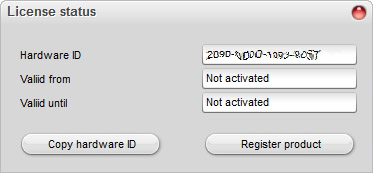
1: DEMO mode information
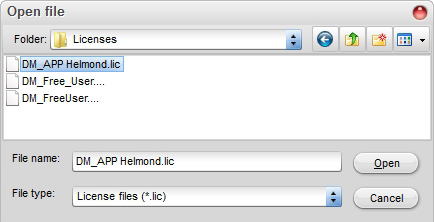
2: when registering the license file
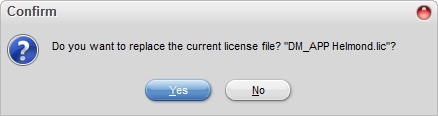
3. when an existing license file was found
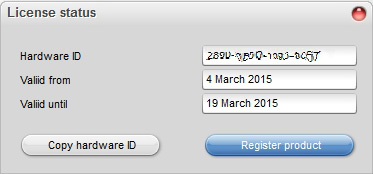
4. when the registration has been completed
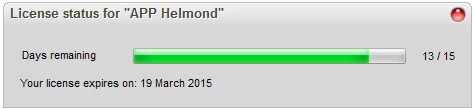
The check the status of the license can be done via the menu ' License' 'View license' which will show the current status of used days and remaining days are shown. In the example below: from 15 days of licensed use 13 days still remain.